App Store verified · Official Manual

Shadowrocket Setup Guide

A paid client for iPhone / iPad that uses rule-based routing to manage request paths. The app is a one-time purchase; connections use subscription or server details the user already has.

  • Global Routing
  • Config
  • DOMAIN-SUFFIX
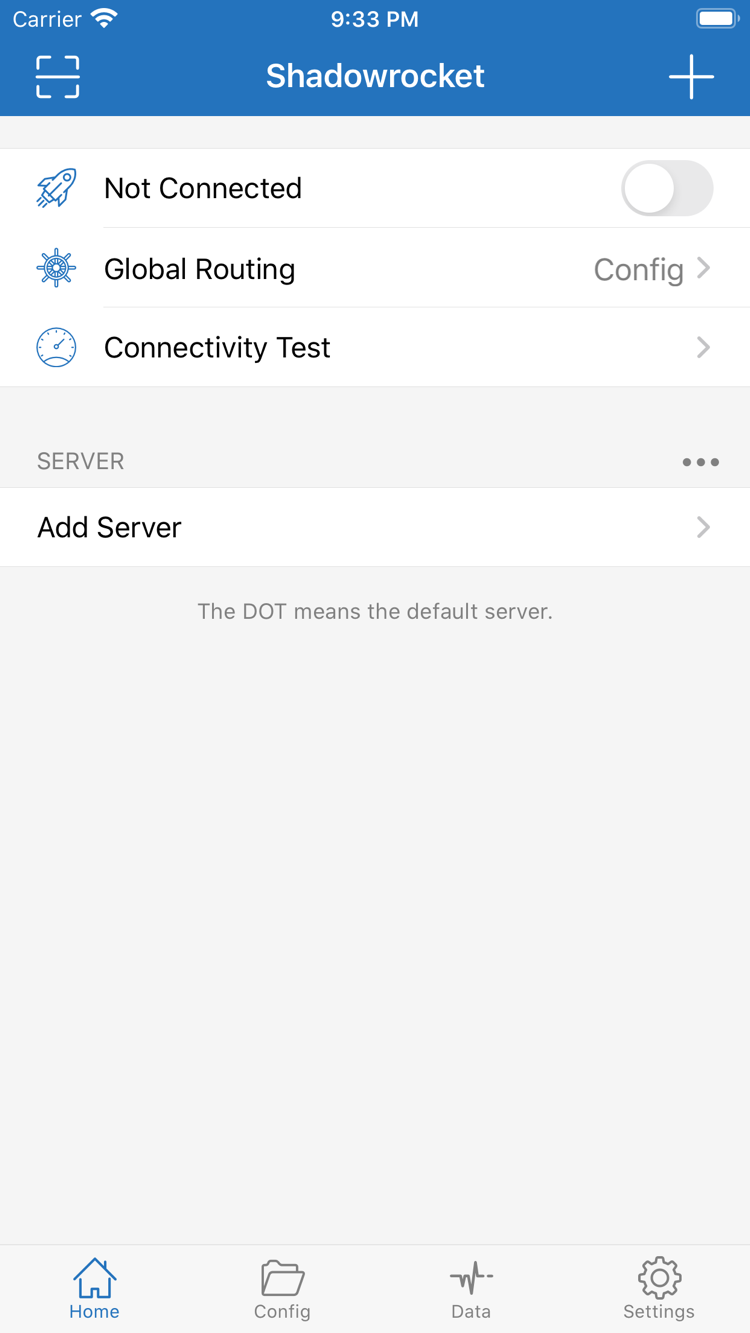
Official Shadowrocket Home screenshot showing the connection switch, Global Routing and server list
Official Home screen · Start with subscriptions and routing rules
Quick start

Connect first, then check routing

Before you begin, have an existing subscription link or server details ready. The app reads the parameters, establishes the connection, and applies the configuration; buying the app does not provide a server. During initial setup, handle importing, choosing a mode, and testing the connection as separate steps. This makes it easier to pinpoint where a problem occurs instead of changing every setting at once.

Step 01

Add Server / Subscribe

In Home, tap Add Server to add an existing server. Select Type based on your server details, then enter the address, port, and authentication information. If you have a subscription link, import it using Subscribe. After importing, check that the expected entries appear in the SERVER list. Seeing an entry only confirms that the data was imported; it does not mean the connection test has passed.

Links, QR codes, and server parameters may contain access credentials. When copying, watch for leading or trailing spaces and line breaks. Hide authentication details before sharing a problem with others.

Step 02

Global Routing → Config

To route requests by rule, select Config in Global Routing and confirm that the Config page is using the expected configuration. Proxy and Direct can help compare connection paths temporarily, but they do not check rule order for you. Read the FINAL rule at the end of the configuration before deciding whether it suits your current needs.

Config is a routing mode; PROXY is a policy keyword in a rule. They serve different purposes. Changing servers does not change the configuration file.

Step 03

Connect and verify

Return to Home, select a server, and turn on the connection. The first time, follow the system prompts to allow the VPN configuration. Run Connectivity Test, then visit one destination expected to use PROXY and another expected to use DIRECT. Check the connection log to confirm the actual paths.

A VPN status indicator means a connection has been established; it does not guarantee access to every destination. If a test fails, keep the original configuration and change only one variable at a time.

If a subscription imports but destinations remain inaccessible, first distinguish a server connection failure from incorrect routing for a particular domain. For the former, check the parameters and current network. For the latter, check Global Routing, the active configuration, and the first matching rule. Troubleshoot these issues separately rather than reinstalling the app to mask the cause.

View the full guide
Devices and App Store

Verify and get Shadowrocket on the App Store

Shadowrocket is available only on Apple platforms, exclusively through the App Store. Before installing, check your device, the Apple ID used for the purchase, and the App Store listing. System requirements, device compatibility, and Universal Purchase availability are as stated on the App Store page.

iPhone

On the product page, verify the official icon, developer, and app ID, then check the price before purchasing. When you first open the app, import your existing details and follow the system prompts to allow the VPN configuration. If you do not have server details yet, you can read about the sections in Home first; there is no need to keep toggling the connection.

If the product page does not load, first check availability in your current storefront, your account region, and your payment settings. Before changing your storefront region, review the requirements for account balance, subscriptions, and payment methods. Not finding the app in search does not automatically mean there is a problem with your device.

Read the instructions

iPad

Use the Apple ID associated with the purchase to check your App Store purchases and the product page. If the App Store listing confirms Universal Purchase eligibility, you may be able to get the app on another compatible device. Actual purchase availability is as shown on the App Store page. A larger display does not change the top-to-bottom rule matching order.

Restoring the app and restoring its configuration are separate tasks. A connection working on another device does not mean this device has the same server selection, subscription contents, or active configuration. Even with sync enabled, check this device's settings one by one.

Read the instructions

The App Store listing should name Shadow Launch Technology Limited as the developer, and its URL should include app ID 932747118. Do not identify the product by name alone in search results.

View the steps to get the app
On the App StoreDownload Shadowrocket
Key features

Check connection details, rules, and diagnostics separately

The server determines where the connection goes; the configuration determines which policy applies to each request; diagnostics help show whether the current path is working. These are related, but none can replace the others. First confirm that the current network and server are available, then adjust the rules and review the connection log to verify the result.

Common issues

  • Not sure which requests use PROXY, and changing servers still does not explain the results.
  • The subscription imports, but saved parameters are mistaken for a working server connection.
  • DNS, rules, and connection mode are changed at the same time, making it hard to tell which change had an effect.

What to do

  • Use Config, check the active configuration and first matching rule, and review FINAL.
  • After importing, check the parameters, then verify with Connectivity Test and an actual connection.
  • Keep the original configuration, change one thing at a time, and compare results using the same destination.

Define the scope before setting rule order

To route traffic by destination, select Config in Global Routing and confirm which file is active on the Config page. Rules are evaluated from top to bottom; the first match determines the policy. Put specific domains before broader domain suffix rules, and place FINAL last. In the example below, a specified subdomain is rejected first, other requests to example.com use PROXY, and all remaining traffic uses DIRECT. This demonstrates matching logic only; it is not a complete configuration to replace your existing setup.

[Rule]
DOMAIN,ads.example.com,REJECT
DOMAIN-SUFFIX,example.com,PROXY
FINAL,DIRECT
Read about rule types

How the three Global Routing modes work together

Use Config for everyday routing by configuration, Proxy to temporarily compare the proxy path, and Direct to temporarily compare the direct path. Proxy and Direct are troubleshooting tools, not the final test of whether a set of rules is correct. When testing is complete, return to the original mode and verify using the same destination so temporary settings are not left in place for daily use.

Traffic changes in Data, data syncing in iCloud, and connection status in Home are also separate layers. Seeing traffic does not mean a subscription update succeeded, and seeing a file on another device does not mean this device has selected it. Note the current server, Global Routing mode, and configuration name, then repeat the test. This usually makes it easier to locate the issue than switching several settings in succession.

View all feature guides
Authenticity and purchase details

Verify the product and distinguish the app from connection services

Shadowrocket is a closed-source commercial app. This is the official manual, and this site is the official website. Use the App Store product page to get the app, check its price, and review compatibility. This site does not provide, sell, or recommend nodes or subscriptions. The instructions assume that users already have their own subscription or server details.

Verify the developer, icon, and app ID together

Official Shadowrocket app icon

Developer: Shadow Launch Technology Limited
App ID: 932747118

On the App Store product page, check the developer name against the official icon used on this site, then verify that the page URL includes id932747118. Checking only the name or one part of the icon is not enough to confirm the product. Review the product details for each search result with the same or a similar name.

The app ID identifies the product; a server name identifies connection details. They are unrelated. The example.com domain in this manual is used to explain rules, not provided as a server address with the app. Do not mistake a rule example for connection details you can use.

One-time purchase and current storefront pricing

The US storefront reference price is $2.99 as a one-time purchase. Other storefronts show local currency, and the final amount is as listed on the App Store page. Universal Purchase availability for iPhone and iPad, other compatible devices, and system requirements are also as stated on the App Store page; this guide does not replace the product listing.

Whether the listing is visible depends on your Apple ID region, account status, and storefront availability. If the product page will not open, first check your network and current storefront. Before changing your account region, review the requirements for your balance, existing subscriptions, and payment method. Do not repeatedly buy other apps with similar names just because the listing is missing from search results.

Restoring the app does not restore all settings

When switching devices or reinstalling, use the original purchase Apple ID to check the app's status in App Store purchases or on the product page. If the page still asks you to pay, first check the account and selected product rather than paying again. Family Sharing availability depends on the App Store listing and the conditions available for your account.

After restoring the app, check your subscription, server parameters, configuration files, and current selection. The contents and status of iCloud sync depend on the in-app settings. Credentials stored on the original device and this device's connection status are not necessarily restored. Keep any necessary details before migrating, then verify the connection again after restoring.

App purchase ≠ connection plan

Buying the app provides the right to use the client; connection services depend on subscriptions or server details that users already have. Even after purchase, you may need to import entries manually into the SERVER list. The entries in a subscription, whether access permissions are valid, and whether a server is online are not determined by the app purchase.

App updates are delivered through the App Store; check the store's update notes for details. Keep your existing configuration before updating. If a problem occurs afterward, first check whether the current server, Global Routing mode, and configuration selection match the previous settings, then verify each one separately. Do not combine an app update, subscription refresh, and configuration change into one untraceable operation.

Read about verification and purchases
Technical notes

From rule scope to configuration structure

After establishing your first connection, read these topics as needed. Start by understanding what each rule can match, then arrange rule order, and finally learn how configuration sections are organized. The examples demonstrate syntax only. Before applying them to an existing configuration, keep a copy of the original file and confirm that the fallback policy is appropriate.

If an interface term is unfamiliar, start with the glossary. If the connection toggle, subscription update, or DNS is behaving unexpectedly, use troubleshooting to check each symptom. Before following a rule guide, confirm that Config is selected so you do not mistake a mode difference for a rule failure.

View all articles